
Activations
Use Activations to create and manage activation codes and provide easier and uniform device rollouts to your field engineers, customers or end users.
With activation codes your field engineers can do a hassle-free device rollout without having in-depth knowledge of device types and network specification.
To read more about available partner services, go to Get started for Partners.
- If your device is connected over LPWAN, pre-provision devices on a network of your choice (you need your own account on the network service)
- If your device has IP connectivity (WiFi/LAN/LTE-M) you can generate a registration secret (or use hardware identifier) so the device client can retrieve device resource credentials and start sending data once the customer rolls out the device
- Use device type and connectivity details to generate an activation code
- Give an end-user the activation code to rollout their device
Creating activation codes
Go to Activations list, and choose + NEW ACTIVATION.
You can create a single activation, or import a whole batch from a CSV file. A switch at the top of the screen lets you pick Single device or Import CSV.
Single device
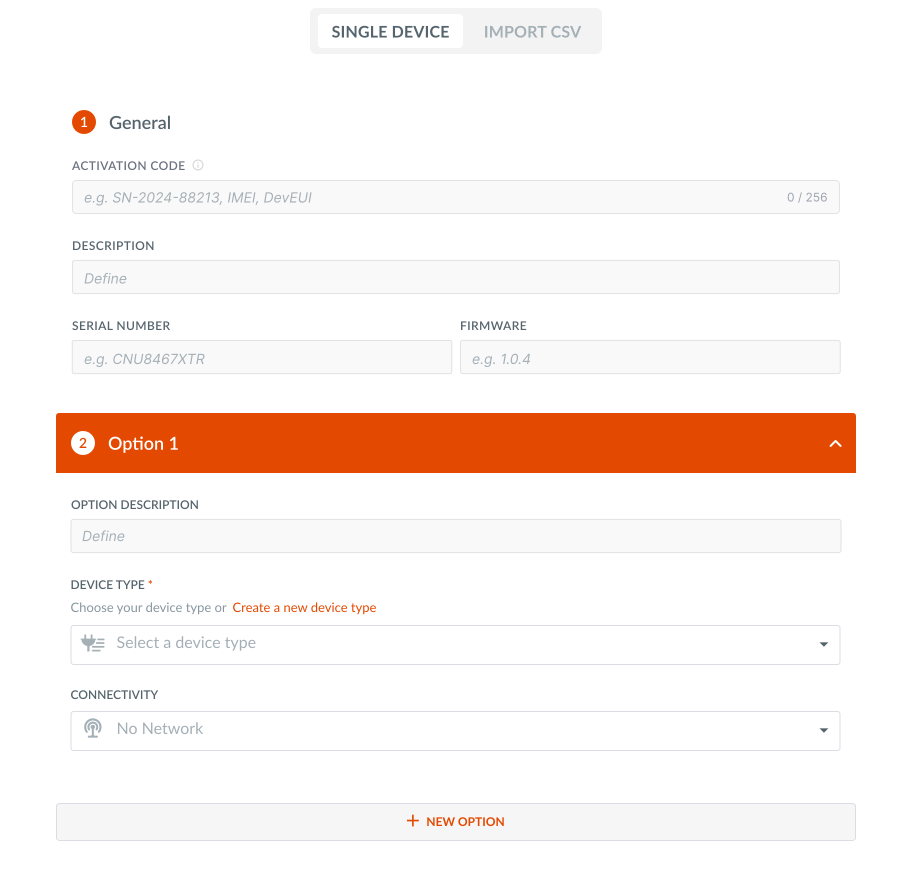
Activation Code
The Activation Code field lets you bind the activation to a code of your own choosing, instead of only relying on a platform-generated one.
- Leave it blank and the platform generates a code automatically, exactly as it always has.
- Or type in an identifier the device already carries, a serial number, IMEI, DevEUI, barcode, or any other string already printed on the device by you or your vendor, and the activation is bound to that exact value. No particular format is enforced, so you can paste the identifier as-is.
This is especially handy if your devices are already labelled at the source: you can skip the step of exporting generated codes and printing labels before shipping.
A code must be unique across your account: once a code has been used for one of your device types, it can’t be reused for another.
Description, Serial Number and Firmware are also available on this screen as optional fields you can fill in for your own reference.
Options
You can configure the activation to allow different rollout options in regards to desired device type and/or a connectivity.
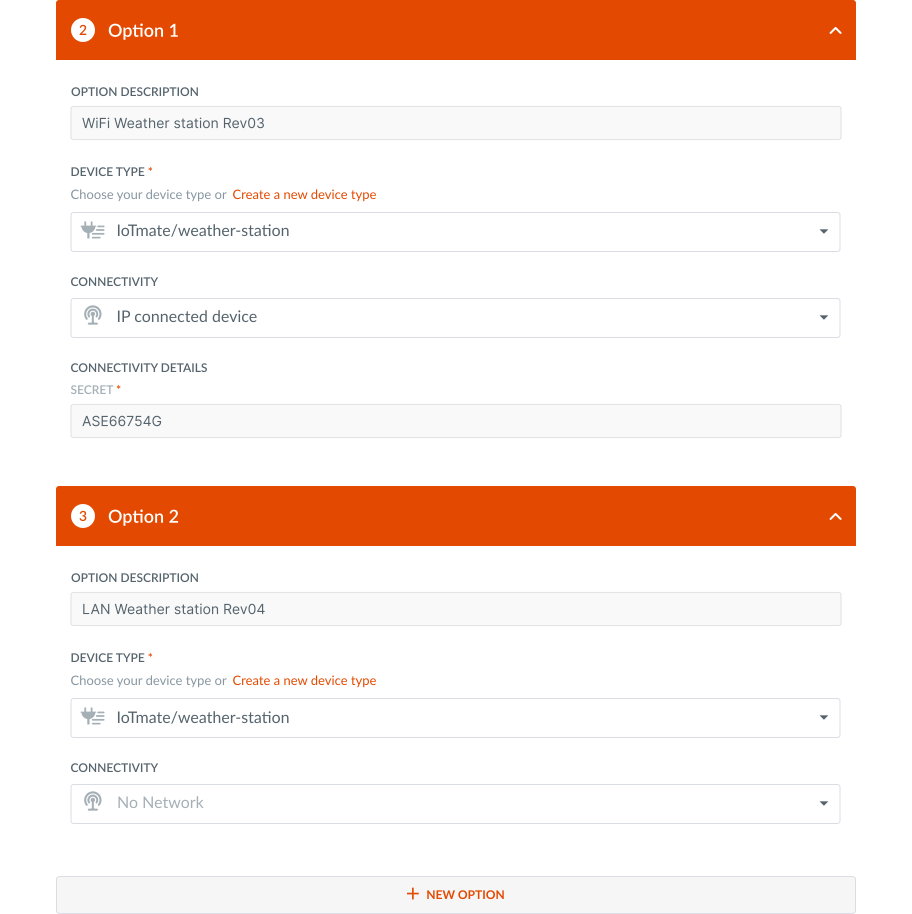
For example, if you have a multi-network hardware device and you want to allow users to choose their preferred network, you can define multiple options. Each option will describe network-specific keys needed for proper provisioning.
- Single option: a device type using a connectivity
- Multiple options:
- a device type using multiple connectivities
- multiple device types using multiple connectivities
Device type
Choose a published device type version. If none, you can create and publish a new device type.
You can define multiple device types in different activation options.
Connectivity
Select one of supported connectivity options.
If your device is IP connected, consider implementing full end to end activation flow for IP connected devices.
Connectivity details
For the device to be connected properly once it’s rolled out, you need to provide connectivity details.
Here are some examples of required fields per connectivity option:
- For LoRa networks (Loriot, Actility ThingPark, Chirpstack etc) you need to provide Device EUI
- For NB-Iot networks (T-Mobile NL, Orange BE IoT etc) you need to provide IMEI
- For LwM2M you need to provide Endpoint, Identity and PSK
All other connectivity details are optional for the connection between an NSP and AllThingsTalk Maker, but might be required for the connection between the edge device and the NSP. The benefit of including it in the activation is to make it accessible to the end-user.
Finish creating activation
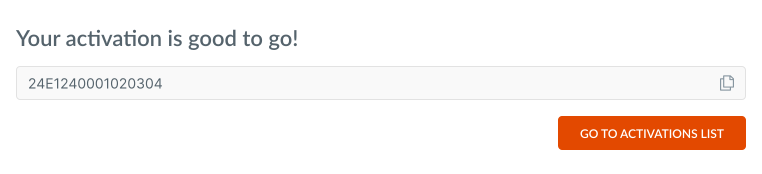
Once you’ve configured the activation, click CREATE button to create your first activation.
Import CSV
Switch to the Import CSV tab to create many activations from a single file, useful when you’re rolling out a whole batch of devices at once. Each CSV file can include activations for only one device type.
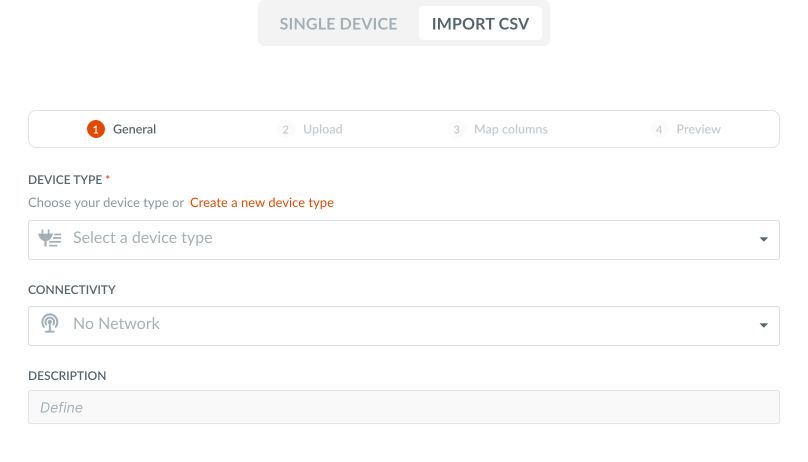
The import runs through four steps:
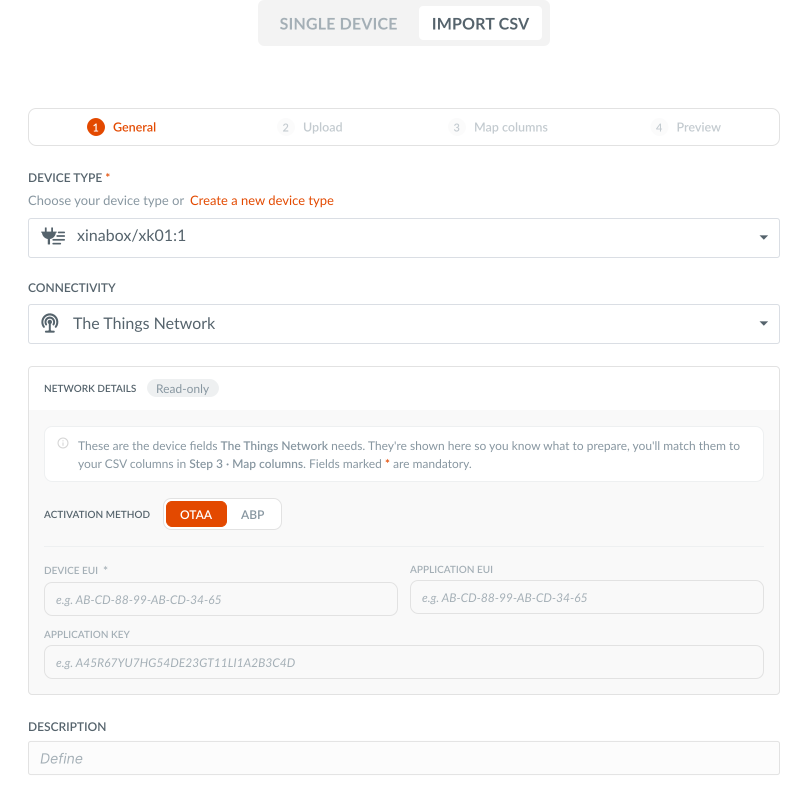
- General settings shared by every device in the file:
- Device type (required) - the device type every imported activation will use.
- Connectivity - the network the devices use. Selecting one shows a read-only Network details preview listing the fields that network requires (e.g. Device EUI, App Key), each marked mandatory or optional. If the connectivity supports an activation method (e.g. OTAA / ABP), switching it updates which fields are required.
- Description - optional, applied to the whole batch.
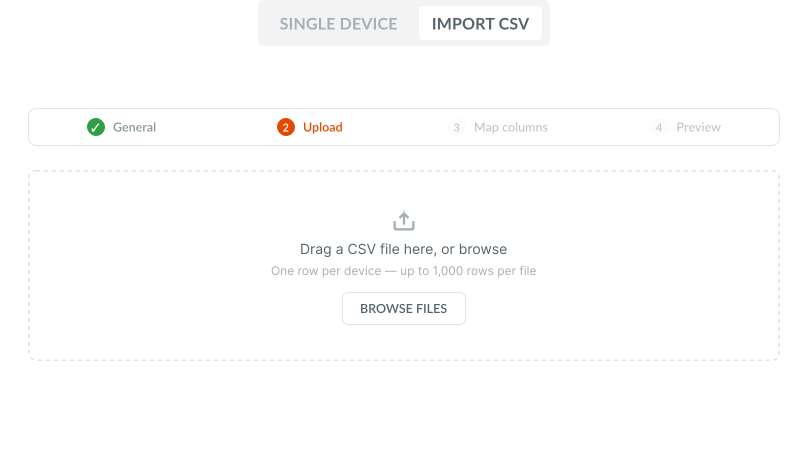
- Upload - drag your CSV onto the drop zone, or click Browse files. One row per device, up to 1,000 rows per file. Larger files are rejected with a prompt to split them into smaller ones.
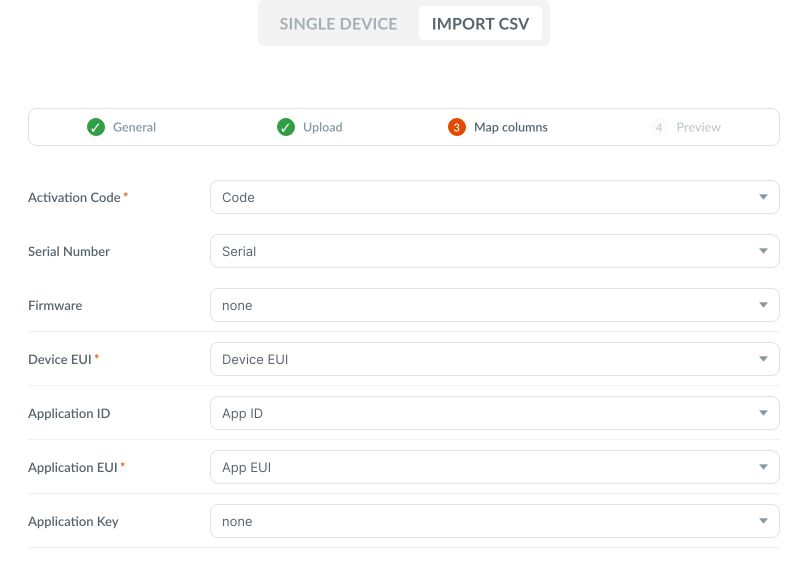
- Map columns - match each CSV column to an activation field. Activation Code, Serial Number and Firmware are always available to map, alongside the network fields relevant to your chosen connectivity. Fields marked with an asterisk are required and must be mapped before you can continue.
- Preview - review a table of every row, with a summary of how many are Ready to import and how many Need attention (with the reason why, e.g. a code that’s too long, duplicated within the file, or badly formatted). You can filter the table to show only rows that need attention, and page through larger files.
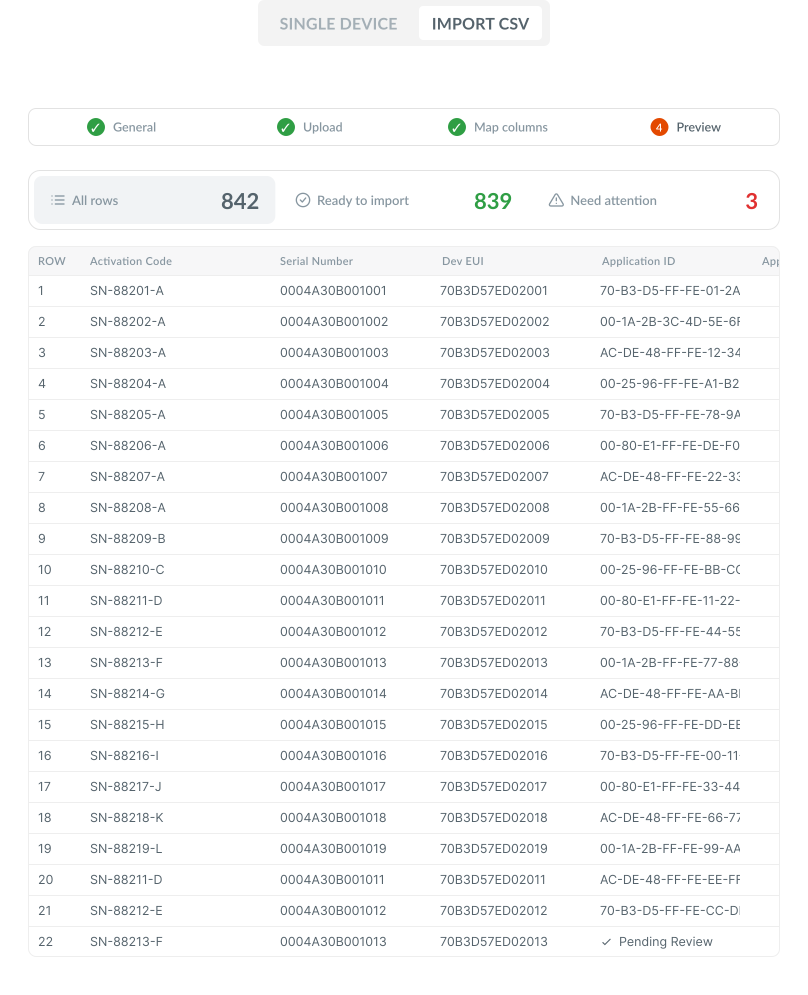
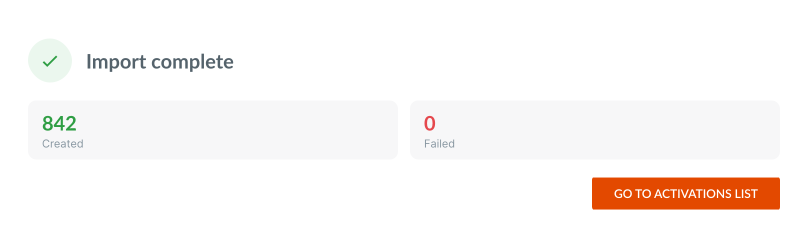
Once you’re happy with the preview, click CREATE. Only the valid rows are imported; you’ll see a completion summary with the number of activations Created and Failed, and if any rows failed, a table listing them with the reason, plus a Download error report option so you can fix and re-upload just those rows.
Managing activations
Activations list show all of your activations.
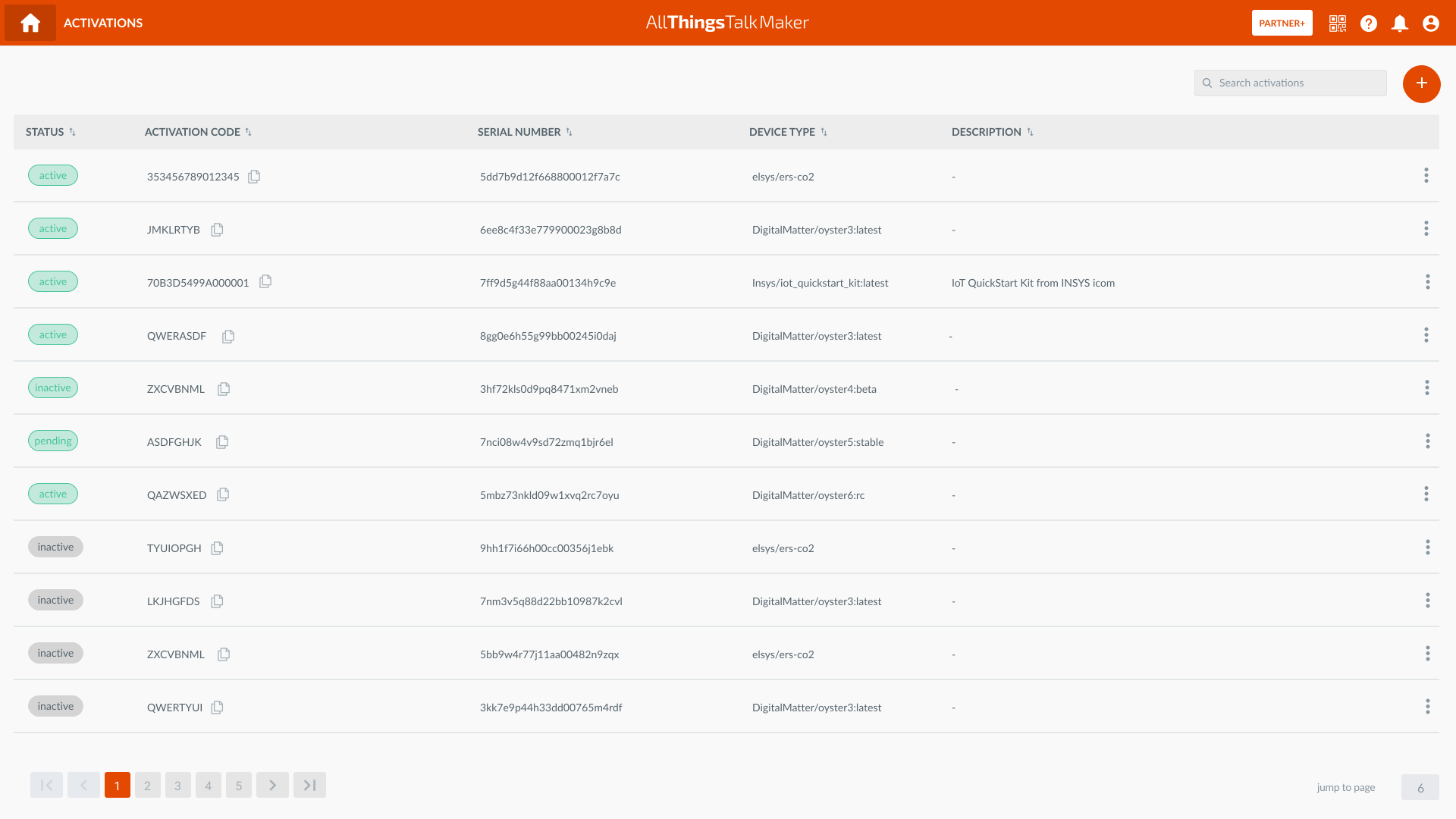
Here’s what you can do:
- Filter by Activation code, Serial number, Network specific details etc.
- View each activation in detail
- See if the activation has been used, unused or failed
- See which option has been used to rollout the device
- Update any activation that has not yet been used
- Deactivate a device (e.g, troubleshooting, reselling of the device etc.)
- Delete an activation you no longer need
Deleting activations
As a partner user, you can delete activations you no longer need, one at a time.
There are two places to do it:
- From the Activations list - open the ⋮ (three dots) menu on the activation’s row and choose Delete.
- From the activation detail window - open the activation and choose Delete.
You’ll be asked to confirm before the activation is removed. Deleting an activation is permanent, and the activation code becomes free to use again.
Which activations can be deleted
- Inactive and Failed activations can be deleted right away.
- Active activations can’t be deleted. First deactivate the device, and once the activation’s status turns to Inactive, you can delete it.
Rolling out the device with the activation code
Once your end-user receives the device and the activation code, they can create a Maker account, or sign in.
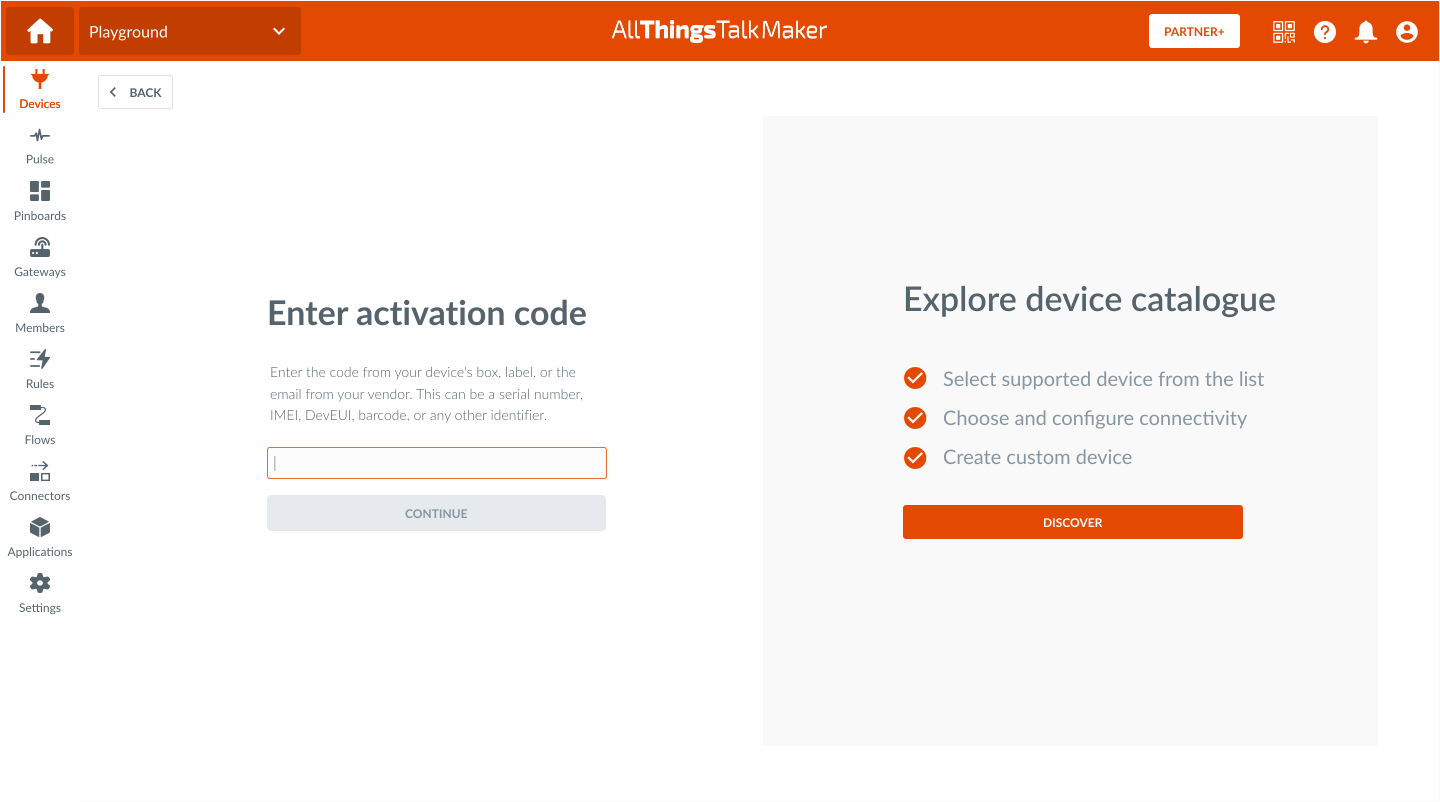
After choosing a ground where the device needs to be rolled out, they can select + NEW DEVICE from the Devices page.
When they enter the activation code, the interface will show the available options. Once they choose an option to roll out the device and confirm, the device is created based on the specified device type and connectivity (if set).
Using Activation API
In case you need more flexibility in managing your activations, you can check out Activations API.