
Get started with Flows
Introducing Flows
Flows are an advanced tool that leverages IoT data to automate user and business processes.
They are rooted in flow-based programming, a method centred around how data moves between different components. With this approach, flows are designed as a network of interconnected nodes, where data flows through the nodes, triggering specific actions and delivering outcomes.
This makes flow creation visual, intuitive, and scalable, while ensuring the user experience reflects exactly how the system works.
Flows are an advanced functionality of the IoT Platform, designed to enable the creation of complex automations, multi-step processes, and advanced use cases. Their flexibility makes it possible to orchestrate comprehensive workflows, integrate diverse systems, and scale automations as requirements grow.
Key Benefits:
- Clarity: A large canvas provides a clear visualisation of the entire flow.
- Flexibility: Modular design makes it easy to extend, update, or reuse components.
- Transparency: The UI mirrors system processes, reducing the chance of misinterpretation.
- Powerful logic options: A wide range of components allows users to build highly customised flows.
- Efficiency: Visual debugging tools (coming soon*) will make it simple to identify issues and optimise workflows.
How to Use Flows
This section introduces the core building blocks of Flows and provides practical examples with visualisations.
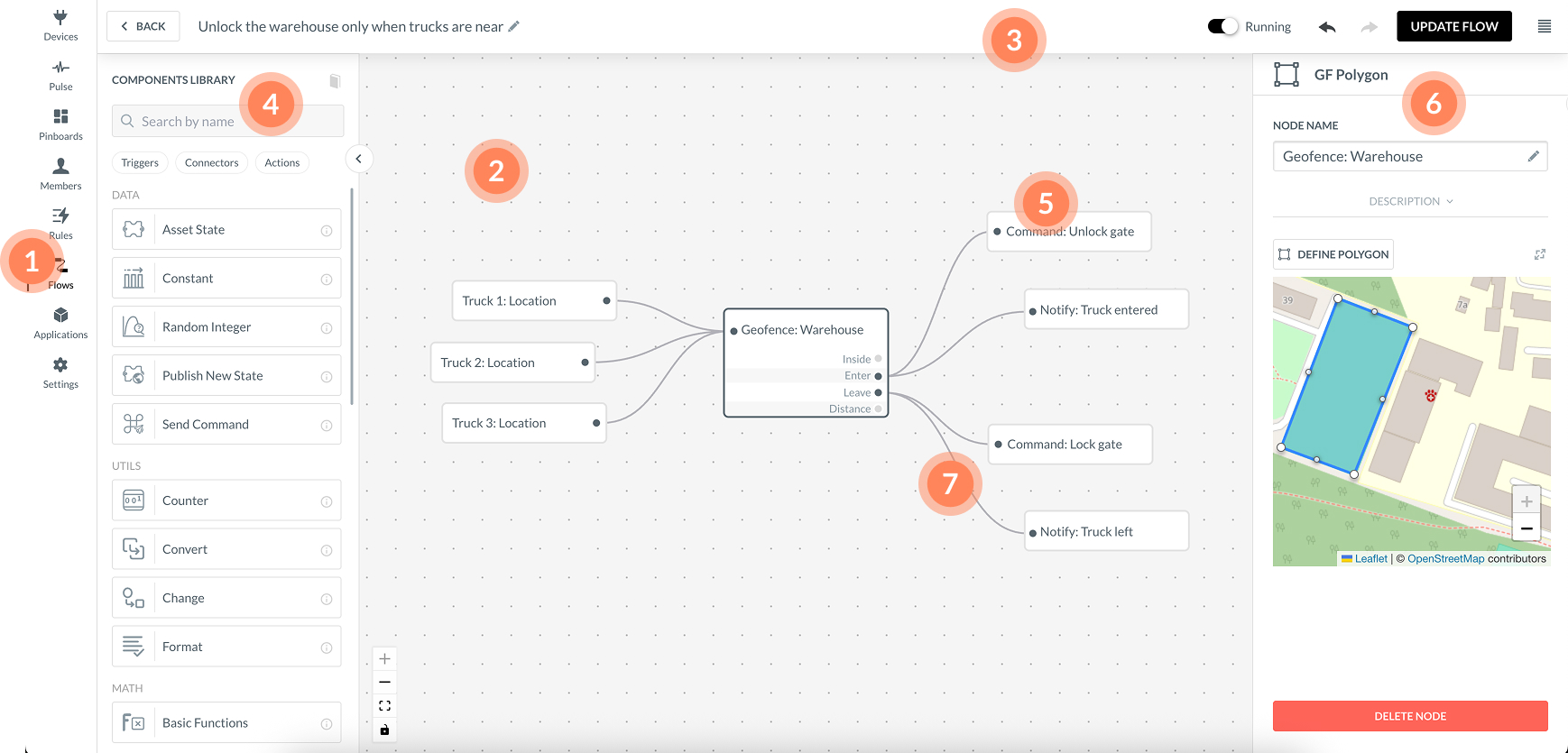
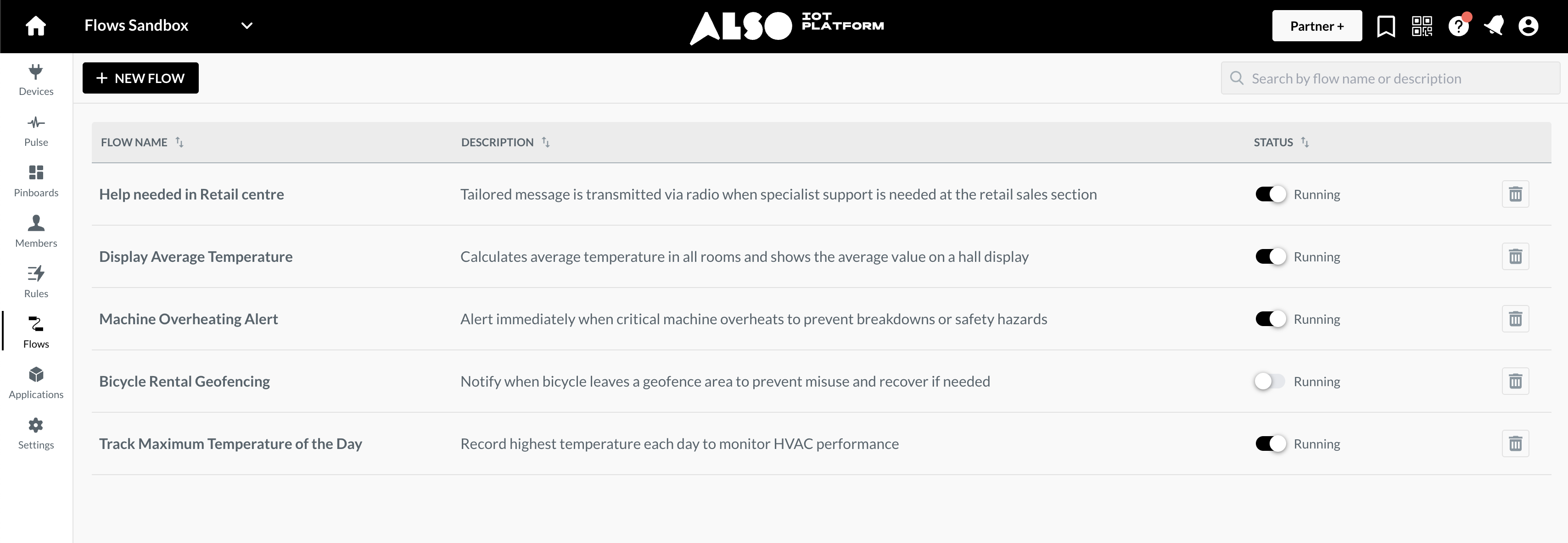
1. List
Flows list provides flow name, description, status and editing options. You can search for a flow by the name and the description.
2. Canvas
- The canvas is your main working area.
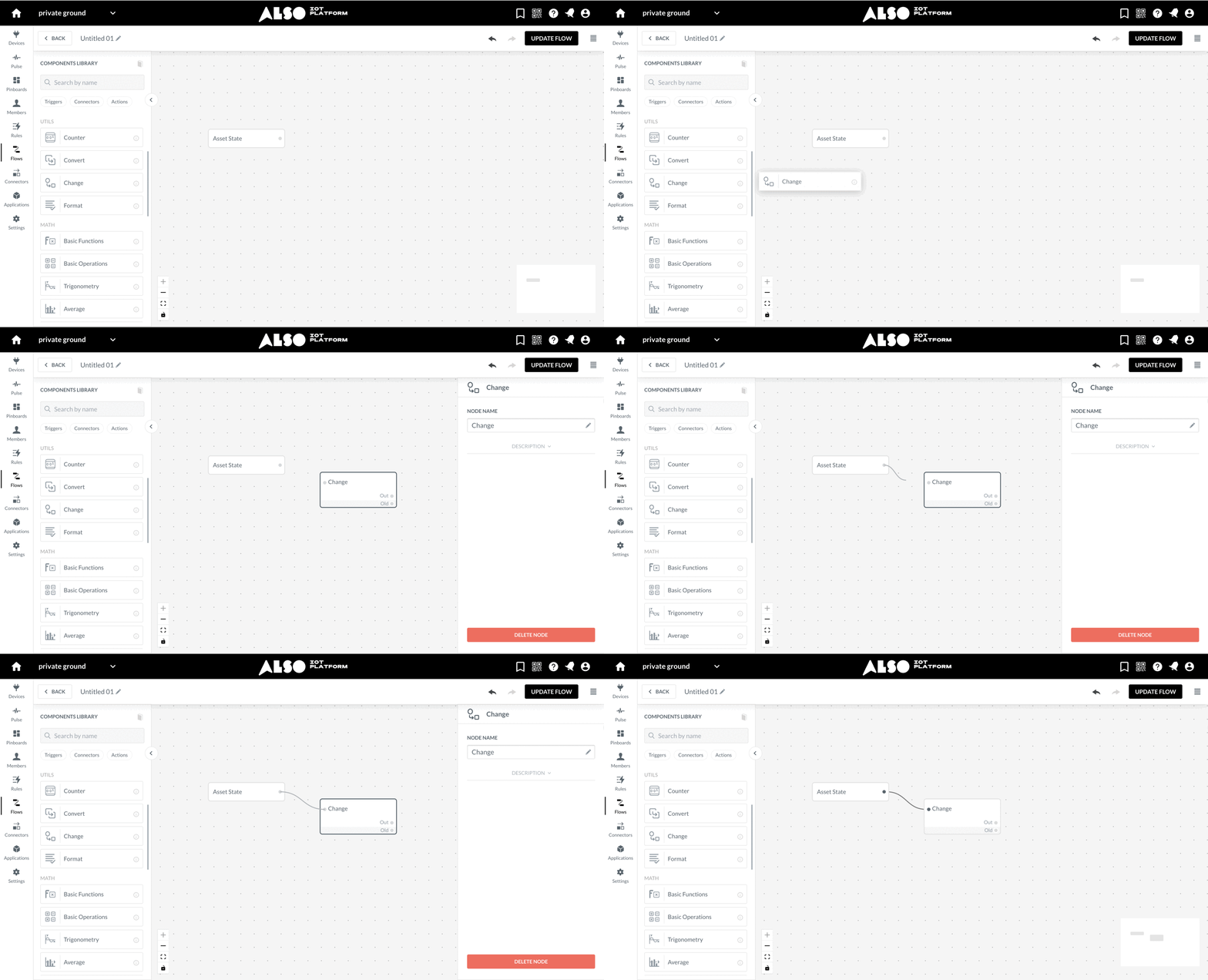
- Drag and drop components to build nodes.
- Connect nodes by linking their input/output points.
- Zoom in/out, focus, or lock options for map navigation.
- Use Ctrl/Cmd + F to search nodes on the canvas.
- Use Ctrl/Cmd + K to open command pallete, then trigger canvas actions or insert components, or jump to any node on the canvas
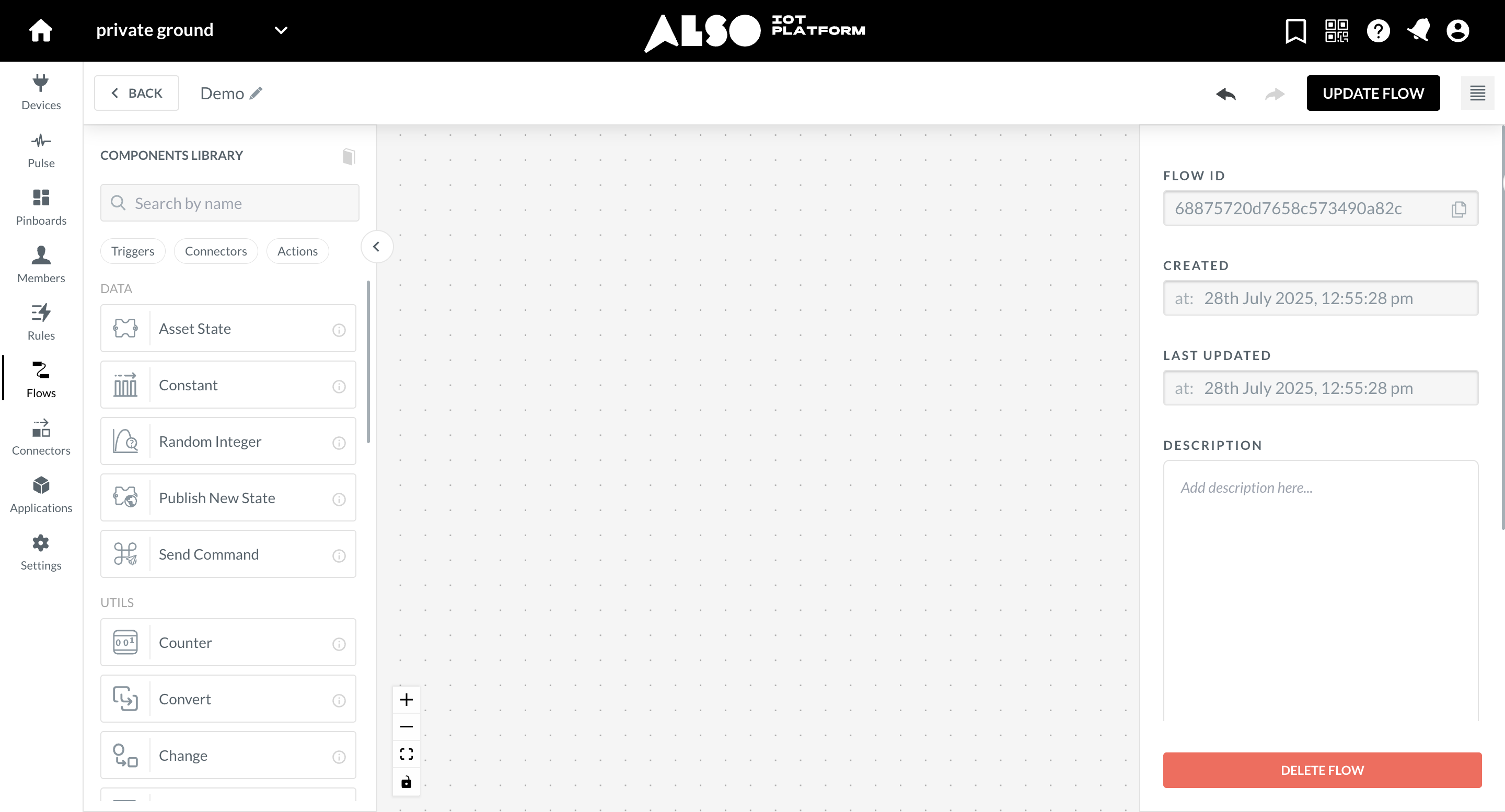
3. Toolbar
Provides quick access to navigation, saving, and flow details, including ownership information and management options.
4. Components Library
The Component Library contains all available building blocks, grouped by category. Each component includes a description, input/output format, and usage example.
See extensive list of all components here.
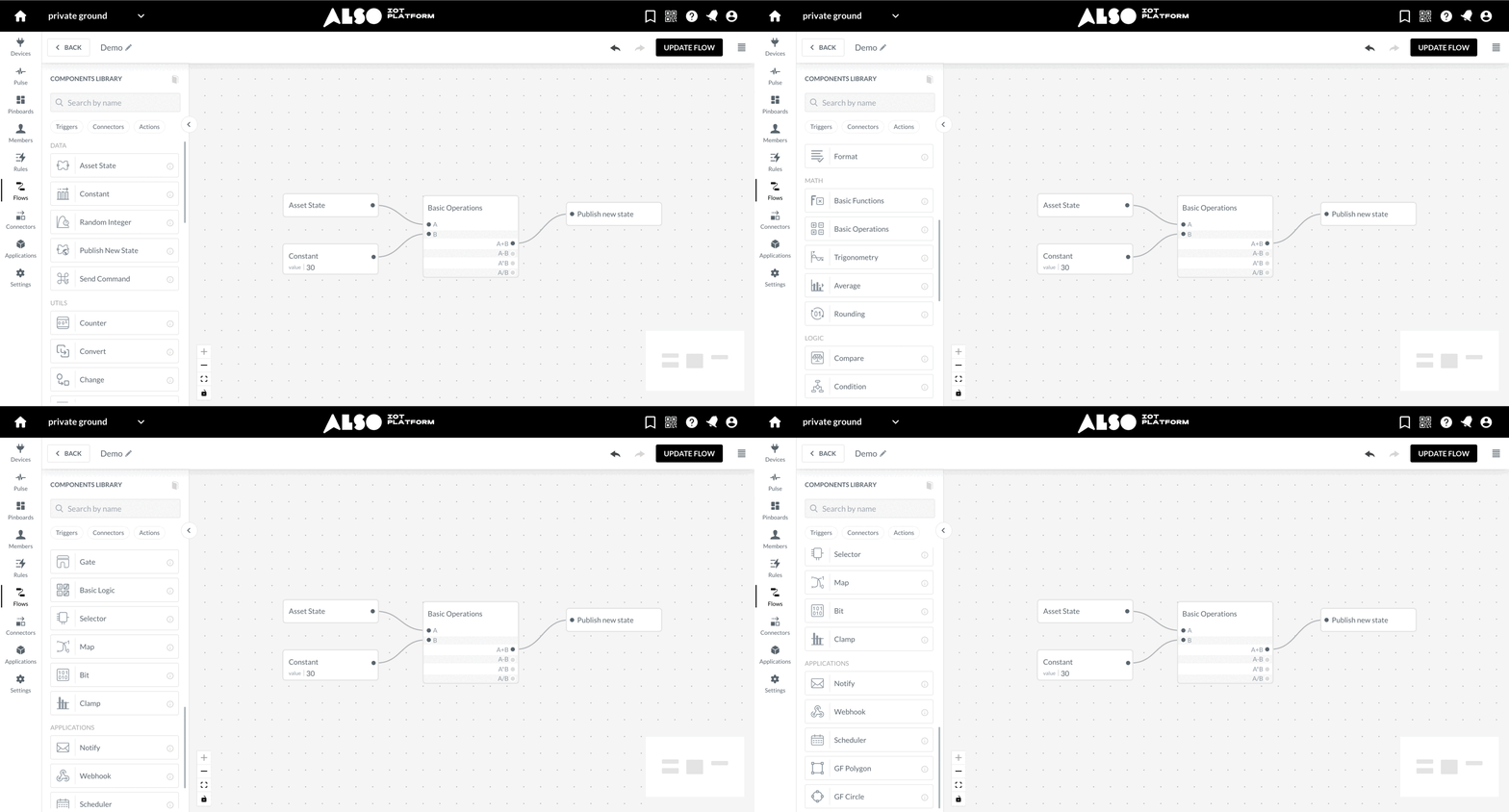
You can pin frequently used components to the top of the library for faster access across all flows.
5. Nodes
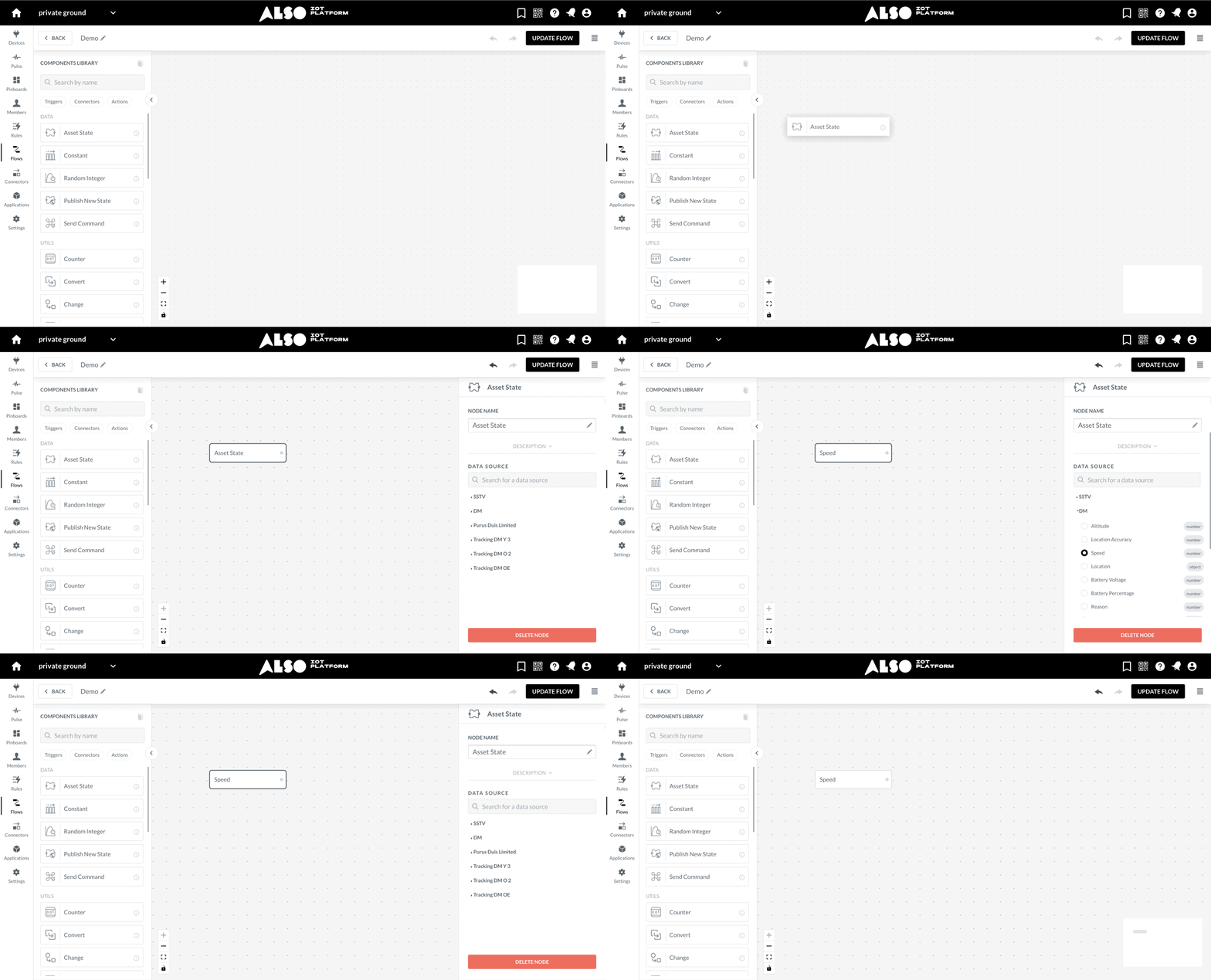
When a component is added to the the canvas, it becomes a single node. You can drag and drop from Component Library, or you can double-click anywhere on the canvas to add a node.
Each node has a specific role, such as providing data, applying conditions, or triggering actions. Together, they form a logical flow that is easier to understand, test, and optimise.
They consist of:
- Node on the canvas - representing data (e.g., device data, assets) or logic.
- Edit menu with description - a configuration panel with details about the node’s purpose and settings.
Multiple nodes can be selected at once using Shift+click or marquee selection.
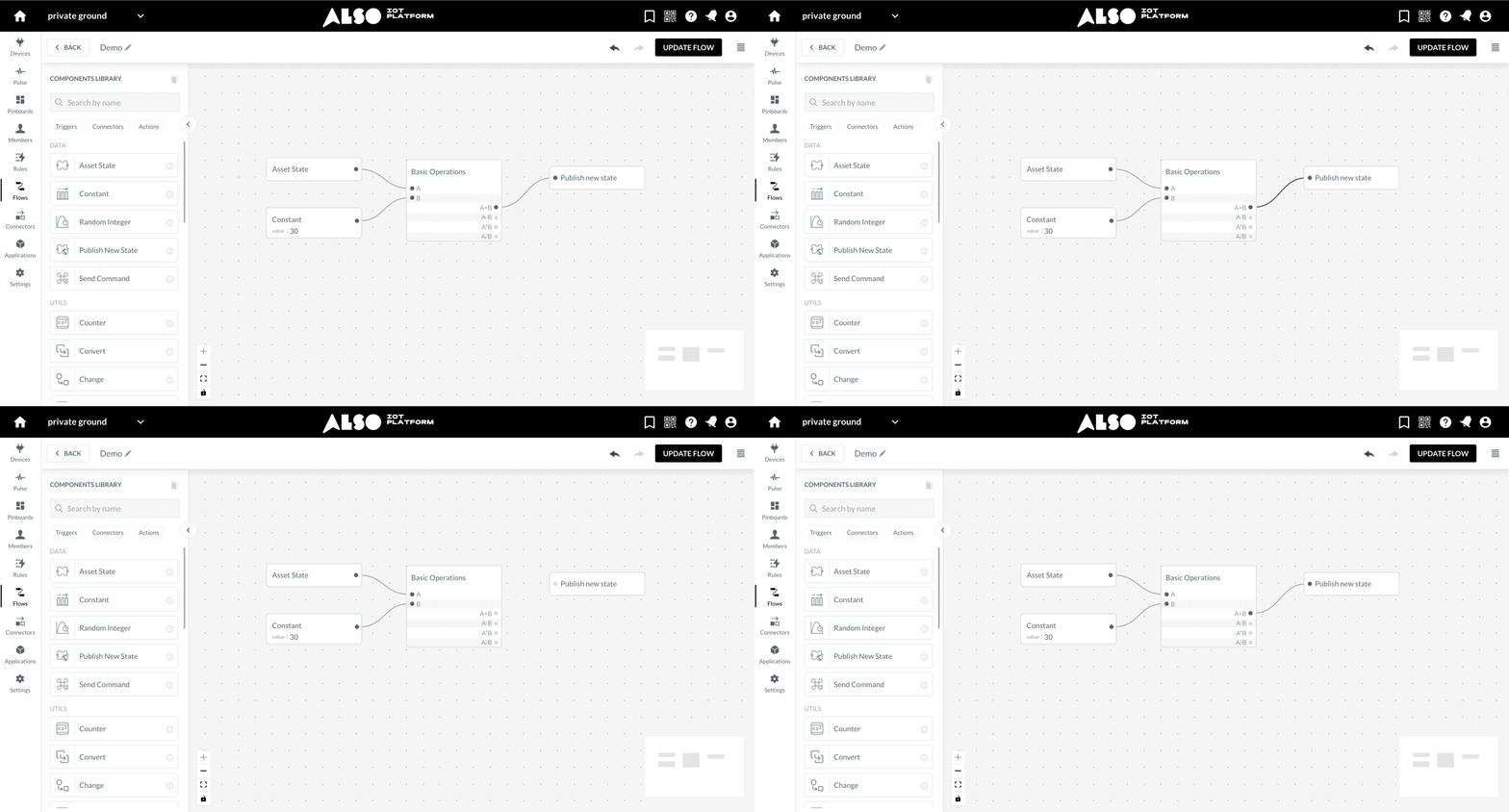
Path Highlights
On the Flows page, users can visually trace connections between components. By focusing on a selected node and its connected elements, the feature helps users more easily follow and understand the path within the flow.
Copy-Paste Nodes
Select one or more nodes and copy-paste them within the same flow or into a different one (Cmd/Ctrl+C and V). Internal connections between copied nodes are recreated automatically, and pasted nodes appear offset to avoid overlap, so you can skip the manual rebuild and get straight to configuring.
Double click to insert Node
Open a floating node picker at the cursor position by double-clicking empty canvas space, allowing nodes to be inserted without leaving the canvas.
Sub-Flows Grouping
Select multiple nodes (Cmd+G) and collapse them into a named, collapsible group container that keeps the flow readable while preserving all internal and external connections. Groups can be expanded at any time, and all edges reconnect to their original handles automatically.
Quick Connect
Drag from a node’s output handle and release on empty canvas space to open a node picker, insert a new node, and wire the connection in a single gesture, no need to place a node and then manually draw a connection separately.
Pinned Components
Pin any component to the top of the component library so your most-used nodes are always immediately visible without scrolling or searching. Pins are scoped per user and persist across page reloads and flows.
6. Edit menu
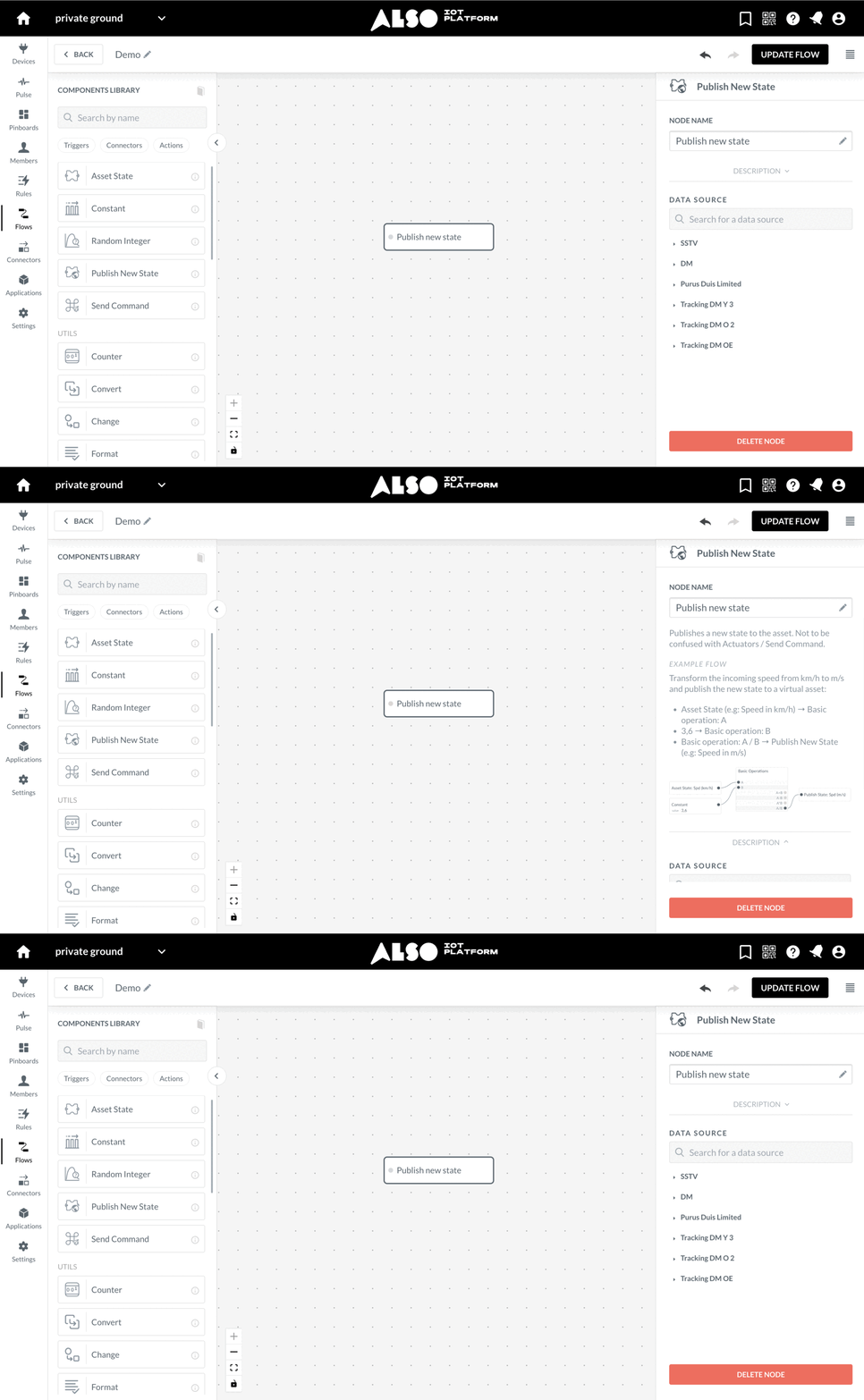
Each node on the canvas comes with an edit menu, which allows you to configure its behaviour and understand its purpose.
The edit menu typically includes:
- Name - both for component and node.
- Description - explains what the node does.
- Inputs / Outputs - shows what kind of data the node receives and produces.
- Configuration options - parameters you can set.
- Delete - action for removing the node from the canvas.
- Settings - for each node one can set:
- Colour palette - Assign colour tags to individual nodes for visual grouping and status marking on the canvas.
- Comment - Inline comments anchored to a specific node (shown as a small tooltip icon) for documenting complex logic without cluttering the canvas.
7. Connections
Connections are the lines that link nodes together and define how data flows between them.
- To connect nodes, drag a line from the output of one node to the input of another.
- Clicking a connection line highlights it and allows you to delete it if needed.
- Drag a connection from a node’s output handle and release on empty canvas space to open the component picker, create a new node, and automatically connect it.
Canvas Productivity Features
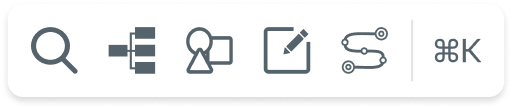
This section covers tools you can find in the floating toolbar on the canvas, that make building and managing flows faster and less repetitive.
Node Search
Open an in-canvas search panel (Cmd/Ctrl+F) to filter nodes in real time by component type, node name, or assigned asset. Matching nodes are highlighted on the canvas and you can navigate between results with keyboard arrows, making it easy to find your way around even the most complex flows.
Tidy Up
A one-click option that automatically arranges all components into a clean, organised layout. After a heavy editing session or a complex build, it brings instant order to the canvas without any manual dragging.
Flow Templates
Save any selection of nodes, or an entire flow, as a named template stored in your personal library. Templates drag onto any canvas as a starting point, and each insertion creates independent copies you can freely edit. Build a pattern once and reuse it across as many flows as you need.
Sticky Notes
Add freeform text annotations anywhere on the canvas to document decisions, flag areas for review, or provide context for others. Notes live alongside the logic they describe, making flows easier to understand, hand off, and revisit.
Validation
Scans your flow for configuration errors and highlights the affected nodes inline on the canvas. Catch and fix issues before they surface at runtime, so you can ship flows with confidence.
Command Palette
A keyboard-first overlay (Cmd/Ctrl+K) that puts every canvas action and component within reach from a single searchable interface. Type to filter across Actions (Search Nodes, Tidy Up, Add Note, Validate, Undo, Redo) and Insert Node categories in real time — no toolbar hunting or library scrolling required. A ⌘K hint in the bottom toolbar keeps it always discoverable.
General flows management
Version history
Automatically keeps a timeline of saved changes to your flow, so you can see what changed and when. Browse earlier versions, compare them against the current build, and restore a previous state in a single click a safety net that lets you experiment freely without worrying about losing work.
Duplicate flow
Create a full copy of an existing flow straight from the flows list, just hit the copy button on the flow you want to reuse. The duplicate keeps all of the original’s nodes, connections, and configuration, giving you a ready-made starting point to adapt without rebuilding from scratch.
See more
Now you know the basics, it’s time to test your first flow. Feel free to explore components library or visit examples section to get some inspiration.